Accepting Online Payments
In this Quickstart, you will learn how to create, initiate, and test a payment.
You will need access to your Pay Theory Sandbox. If you do not have a sandbox account, you can request one here.
Request a Sandbox- Javascript
- Apple
- Android
1. Importing the SDK
In order to import your SDK, you will need to copy and paste your Import URL into the header of your code editor.
The SDK URL can be found in the Pay Theory portal under the settings tab as the SDK Import URL.
<script src={SDK Import URL}> </script>
2. Calling the Pay Theory SDK
When you want to call a function from Pay Theory SDK you will need to use one of the following window objects:
paytheory or window.paytheory
3. Add Pay Theory elements to your form
You need to add the Pay Theory elements to your form. You can place these elements anywhere in your form and the SDK will place the hosted fields in the correct place.
<div id="pay-theory-credit-card"></div>
<div id="pay-theory-credit-card-zip"></div>
4. Set up the event listeners
After that, before you initialize the Pay Theory fields, you would need to invoke any event listeners.
The link below provides list of all event listeners available in the below link.
View All Event Listenerspaytheory.errorObserver(error => {
//Logic to respond to errors
})
5. Initialize the Pay Theory fields
After you have set up all the event listeners, you can initialize the Pay Theory fields by calling the
payTheoryFields function.
const API_KEY ='YOUR_API_KEY'
paytheory.payTheoryFields({
  apiKey: API_KEY,
})
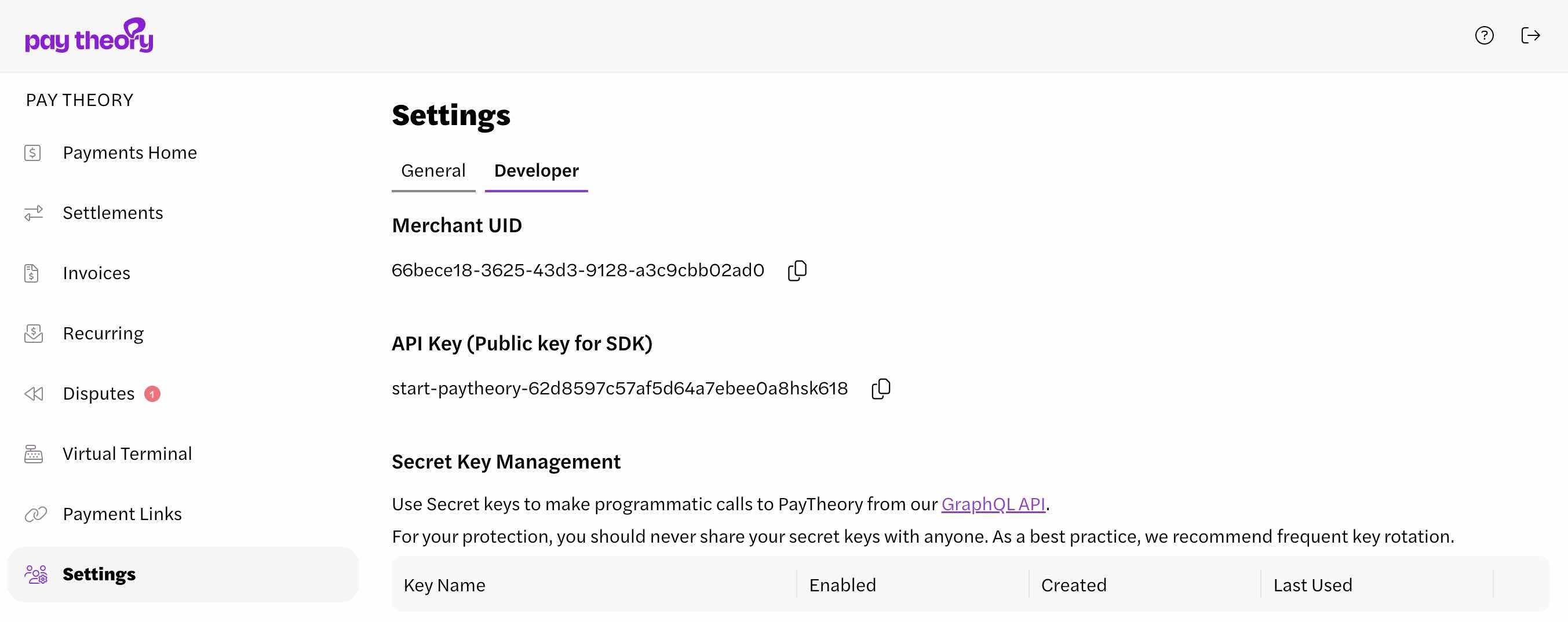
- Log in to your Pay Theory portal.
- Select the settings page from the left-hand navigation menu.
- Select the developer tab.
- Find the API Key (Public key for SDK).
- From here, you can copy the API key and paste it into your code editor.
6. Once the fields are valid, run transaction
The only required field for the transact parameters is the amount field. You can customize the transact function more.
//Amount passed in is in cents
const AMOUNT = 1000

// Parameters that you will pass into the transact function. More details below.
const TRANSACTING_PARAMETERS = {
    amount: AMOUNT,
    // Optional. Send the same key on a retry so the payor isn't charged twice
    idempotencyKey: 'order-1042'
}

let result = await paytheory.transact(TRANSACTING_PARAMETERS)

if (result.type === "SUCCESS") {
// Logic to respond to successful transaction
} else if (result.type === "FAILED") {
// Logic to respond to failed transaction
} else if (result.type === "ERROR") {
// Logic to respond to error
}
Pass an idempotencyKey with each payment. If a request times out, you can retry it or look up the original payment. See Idempotency.
Download code
Click below link to download the full code and project files.
DownloadStep 1: Import the Swift Package
First, you need to add the PayTheory Swift package to your Xcode project:
- In Xcode, go to File > Add Packages...
- In the search bar, enter the following URL:
https://github.com/pay-theory/pay-theory-ios - Select the PayTheory package when it appears in the search results.
- Choose the branch you want to use. This would be your partner name and the environment you are targeting.
- For example, if you are a partner named
starttargeting thepaytheoryenvironment, you would select thestart-paytheorybranch. - Your environment can be
paytheory,paytheorystudy, orpaytheorylab.
- Click "Add Package" to import it into your project.
Step 2: Import PayTheory in Your Swift File
In any Swift file where you want to use PayTheory, add the import statement at the top:
import PayTheory
Step 3: Initialize the PayTheory Object
Now, you can initialize the PayTheory object with your API key. You can do this in your SwiftUI view:
import SwiftUI
import PayTheory

struct ContentView: View {
    let payTheory = PayTheory(apiKey: "your-api-key-here") { error in
        print("Error: \(error.error)")
    }

    // ... rest of your view code
}
When testing in the sandbox environment, set devMode to true to bypass App Attestation. This is useful for testing in simulators but does not reflect the production environment. Always test with devMode set to false in sandbox before moving to production.
Step 4: Wrap Your View with PTForm
Wrap your main view content with the PTForm view provided by the SDK. This allows the custom text fields to access the necessary data:
var body: some View {
    PTForm {
        VStack {
            // Your form fields will go here
        }
    }
    .environmentObject(payTheory)
}
Step 5: Add Custom Text Fields for Card Details
Use the custom text fields provided by the SDK to capture card details:
PTForm {
    VStack {
        PTCardName()
        PTCardNumber()
        PTExp()
        PTCvv()
        PTCardPostalCode()

        // Other form fields as needed
    }
}
.environmentObject(payTheory)
Step 6: Implement Payment Button
Add a button to initiate the payment process:
Button("Pay") {
    payTheory.transact(amount: 1000, paymentMethod: .card) { response in
        switch response {
        case .success(let payment):
            print("Payment successful: \(payment.transactionId)")
        case .failure(let failure):
            print("Payment failed: \(failure.failureText)")
        case .error(let error):
            print("Error: \(error.error)")
        case .barcode:
            print("Barcode generation not applicable for card payments")
        }
    }
}
Both transact and tokenizePaymentMethod have async versions that you can use with Swift's structured concurrency:
Button("Async Pay") {
    Task {
        let response = await payTheory.transact(amount: 1000, paymentMethod: .card)
        // Handle response
    }
}
Choose the version that best fits your app's architecture and your preferred coding style.
Complete Example
Here's a complete example putting it all together:
import SwiftUI
import PayTheory

struct ContentView: View {
    let payTheory = PayTheory(apiKey: "your-api-key-here") { error in
        print("Error: \(error.error)")
    }

    var body: some View {
        PTForm {
            VStack {
                PTCardName()
                PTCardNumber()
                PTExp()
                PTCvv()
                PTCardPostalCode()

                Button("Pay") {
                    payTheory.transact(amount: 1000, paymentMethod: .card) { response in
                        switch response {
                        case .success(let payment):
                            print("Payment successful: \(payment.transactionId)")
                        case .failure(let failure):
                            print("Payment failed: \(failure.failureText)")
                        case .error(let error):
                            print("Error: \(error.error)")
                        case .barcode:
                            print("Barcode generation not applicable for card payments")
                        }
                    }
                }
            }
        }
        .environmentObject(payTheory)
    }
}
This quick start guide demonstrates how to import the PayTheory package, initialize the PayTheory object, use the PTForm wrapper, add custom text fields for card details, and implement a payment button to process a transaction.
Remember to replace "your-api-key-here" with your actual PayTheory API key.
For more advanced usage and additional payment methods, please refer to the full SDK documentation.
Android Guide Coming Soon
Our Android SDK is fully functional. If you would like to implement our Android SDK select the link below for more information.
View Android SDK Reference
Next steps
Once you are able to initiate the payment the following guides will help you get payments ready for launch.